Add a widget
Widgets are the content blocks on a dashboard. LaunchPad supports two families:
- Nextcloud widgets — Mail, Activity, Calendar, Talk, Files, etc. Discovered automatically from every installed Nextcloud app via the
IManagerwidget API. - LaunchPad custom widgets — Label, Text, Image, Link button, Divider, Files (rich), People, Quicklinks, News, Video, Calendar, Links, Menu, Container, Tile.
Both families use the same picker UI and live on the same grid.
Goal
Add a new widget to your active dashboard.
Prerequisites
- A dashboard you can edit (your own personal dashboard, or one your admin granted you
add_onlyorfullpermission on).
Steps
1. Enter edit mode
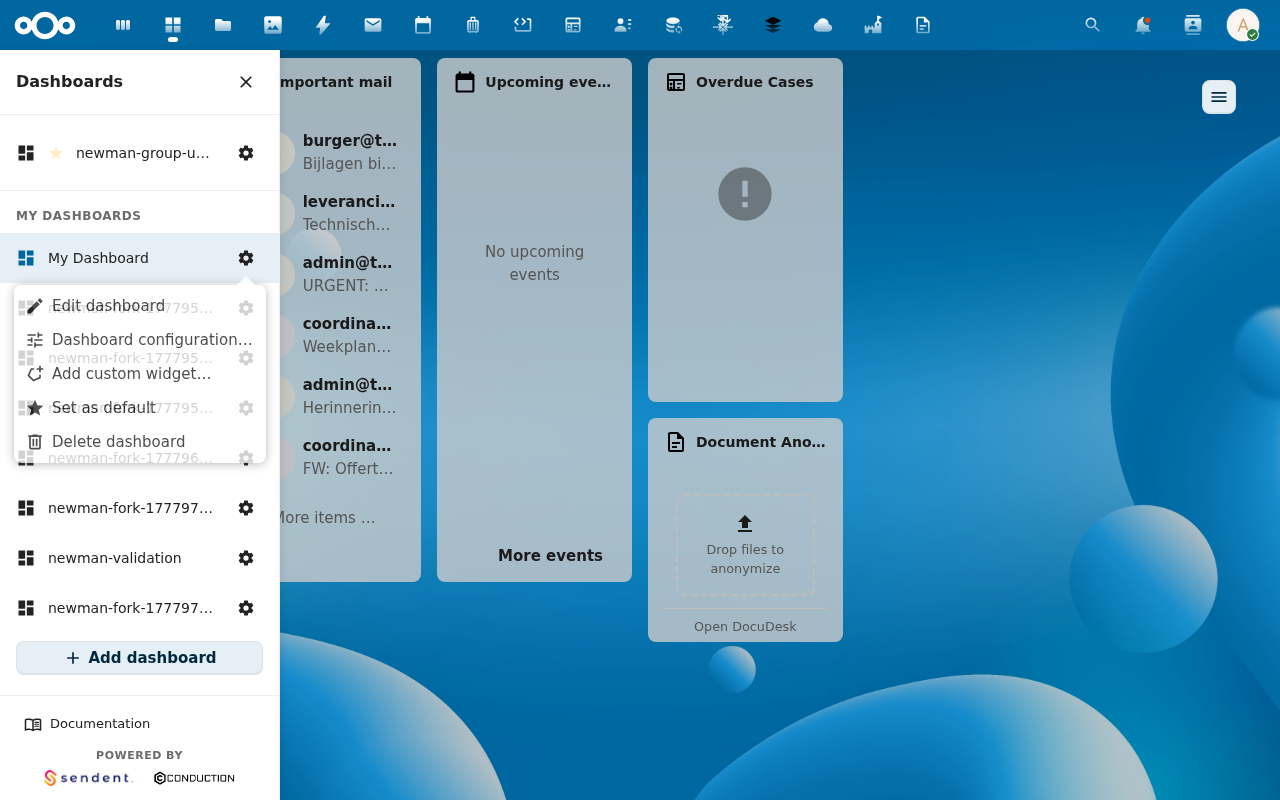
Open the active dashboard's cog menu and click Edit dashboard. The grid shows resize handles on each placement.
2. Open the Add widget modal
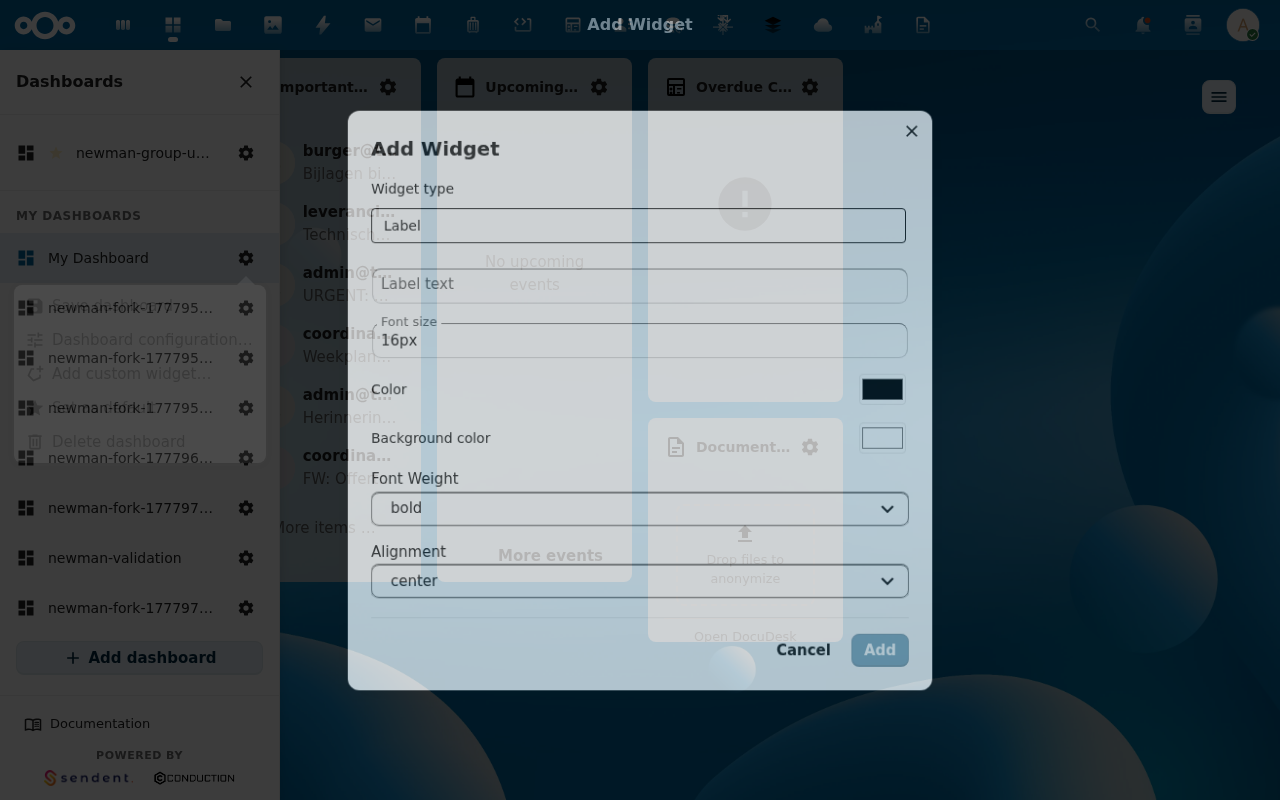
From the cog menu pick Add custom widget… for the LaunchPad custom families, or click the empty-cell + marker that appears in edit mode for built-in Nextcloud widgets.
3. Pick a widget type
The picker groups widgets by family. Hover for a one-line description. Custom widgets that haven't shipped a configuration form yet are filtered out — only types you can actually configure show.
4. Configure the per-type form
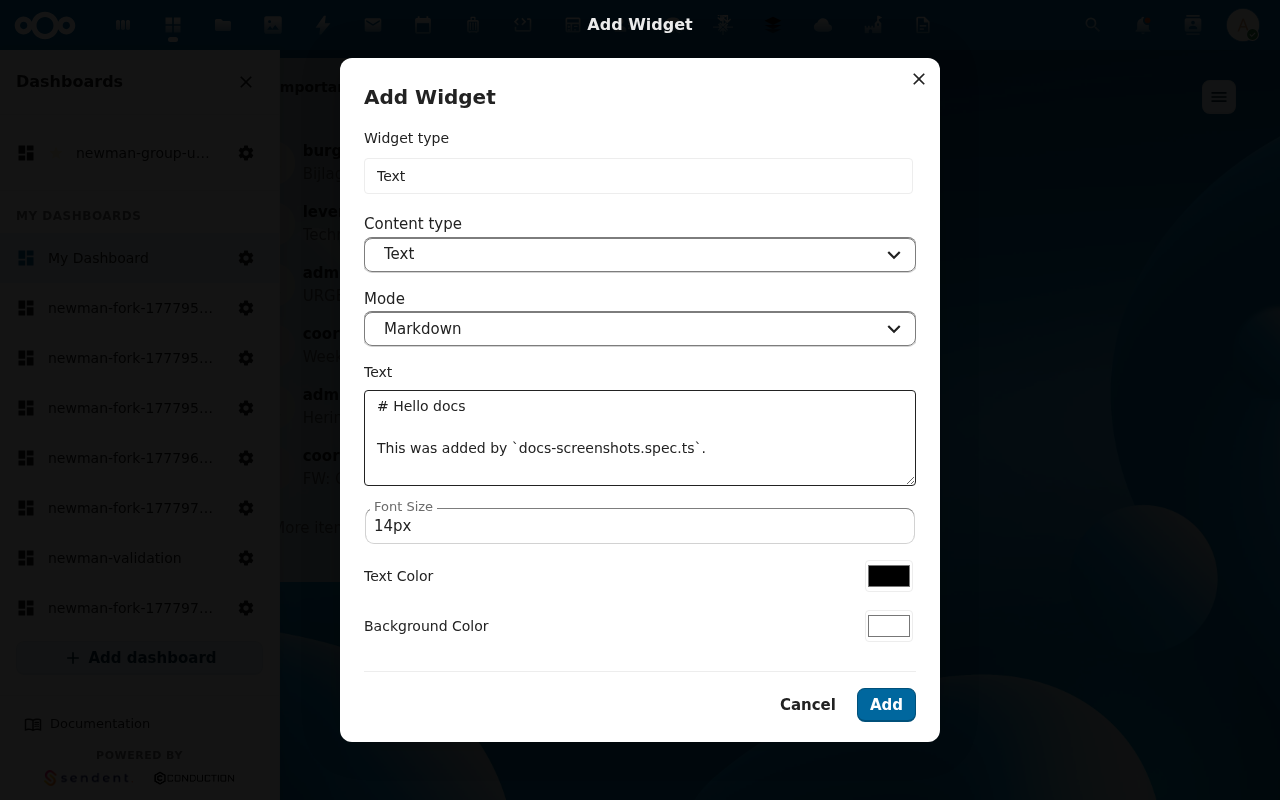
Each custom widget type opens its own form. Some examples:
- Tile — title, icon (registry key, URL, emoji, or SVG), background colour, link type (
apporurl), link value. - Text — markdown body, font size, alignment, optional table mode.
- Files — folder path, view mode (list / grid), optional filters and upload toggle.
- Link button — single-link button or list mode with multiple links.
5. Click Save
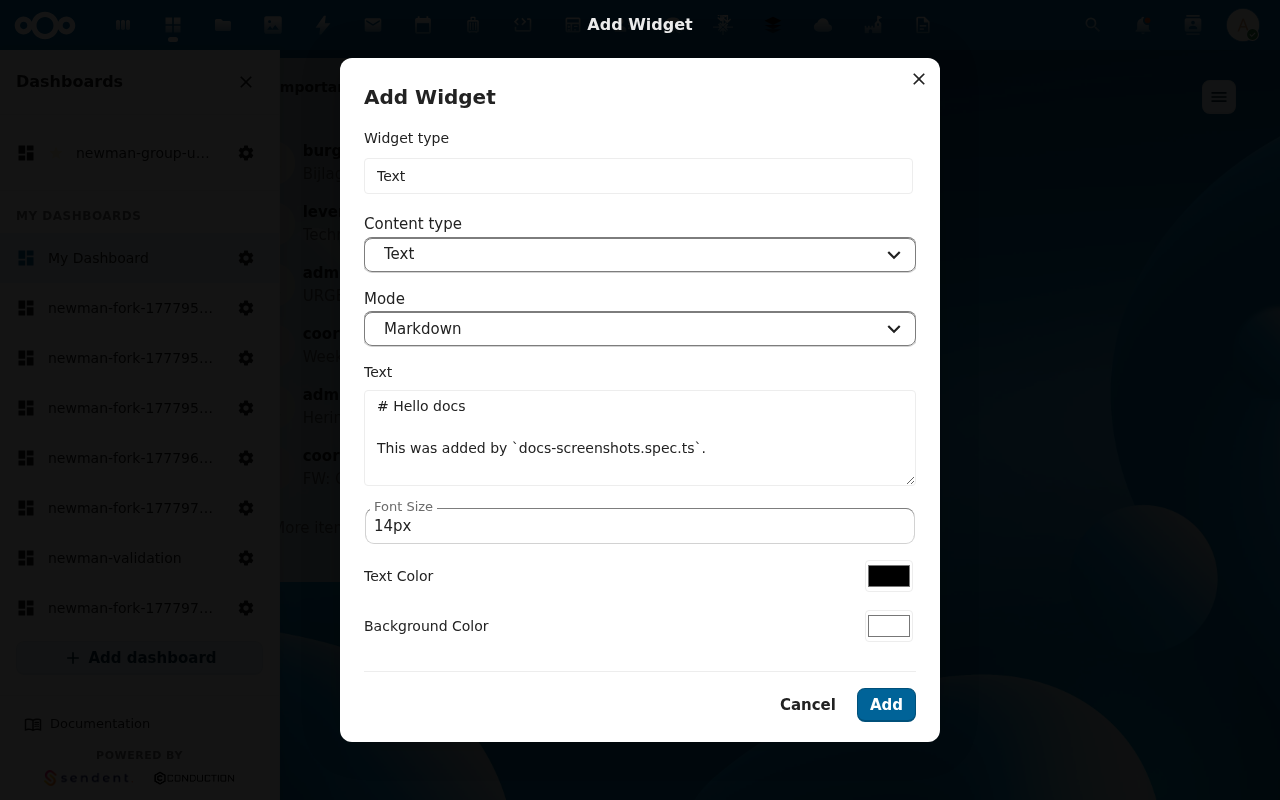
The new placement appears in the grid at the next available cell. You can immediately drag it where you want — see Reposition & resize widgets.
Verification
- The widget renders with the content you configured.
- Reloading the page brings it back at the same grid position with the same content (changes are persisted to
oc_launchpad_widget_placements).
Common issues
| Symptom | Fix |
|---|---|
| Widget type isn't in the picker | Either the type has no configuration form yet, or your admin's role-based widget allow-list excludes it (see admin: restrict widgets per role). |
| Widget renders empty | The type-specific config (e.g. Tile linkValue) wasn't filled. Right-click → Edit to fix. |
| "You don't have permission" toast | The dashboard's permission level is view_only for you. Owners or admins can change it. |